Starlink Not Getting Signal? Start Here
If your Starlink dropped out, is showing an obstruction alert, or has gotten noticeably slower in the last few weeks, the fix is almost always one of six things. This Orange County troubleshooting guide walks them in order, from the free five-minute checks to the problems that need a technician on the roof. Work top to bottom and you will either fix the issue yourself or know exactly what to tell an installer when you call.
Quick note: we are an independent installer. These steps work for any Starlink customer, whether we installed your system or not. If you need local hands in OC, we are one call away.
Step 1 — Check the Obvious Things First
Before you do anything else, rule out the dumb stuff:
- Power. Is the Starlink power brick's outlet live? Try a lamp in the same outlet. GFCI-protected outlets trip — check the bathroom or garage GFCI that may share the circuit.
- LED on the power brick. Solid white means power is fine. Off means no power. Blinking means a fault.
- Cables seated. Unplug and firmly reseat the cable on both the dish end and the router end. The connector should click.
- Restart the router. Hold the Wi-Fi button for 15 seconds until it reboots. Wait three minutes.
That 30-second loop fixes roughly 25 percent of "no signal" reports.
Step 2 — Open the Starlink App and Check Status
The Starlink app is your best diagnostic tool. Open it and look at:
| Indicator | What It Means |
|---|---|
| Online | Dish is connected and passing traffic |
| Offline: No Signal | Dish cannot see the constellation |
| Offline: Connecting | Still trying; wait 10 minutes during a reboot |
| Obstructed | Something is blocking the sky cone |
| Thermal Shutdown | Rare in OC, overheat protection |
| Software Update | Temporary, self-clears in 30 minutes |
If the app shows Obstructed, jump to Step 4.
If it shows No Signal and the LED on the dish is off, the cable between the dish and the router is the most likely culprit. Go to Step 3.
Step 3 — Inspect the Cable
The Starlink cable is tough but not indestructible. Rodents chew it, lawn mowers nick it, staples pinch it, and cheap extension cables corrode at the connectors. Walk the full cable run from dish to router:
- At the dish connector. Pull the cable out and inspect the connector pins. Look for green corrosion, bent pins, or water in the boot. Dry and reseat.
- Along the run. Any visible cuts, nicks, crushed sections, or exposed copper? If yes, the cable needs replacement.
- Through the wall penetration. Check the seal. Water intrusion at the penetration often shows up as signal issues before it shows up as a leak.
- At the router connector. Same inspection as the dish end.
If the cable is damaged, you need a new Starlink cable (available direct from Starlink) and, often, a new sealed penetration. This is a job for a pro on anything other than a simple ground-floor run.
Step 4 — Run the Obstruction Scan
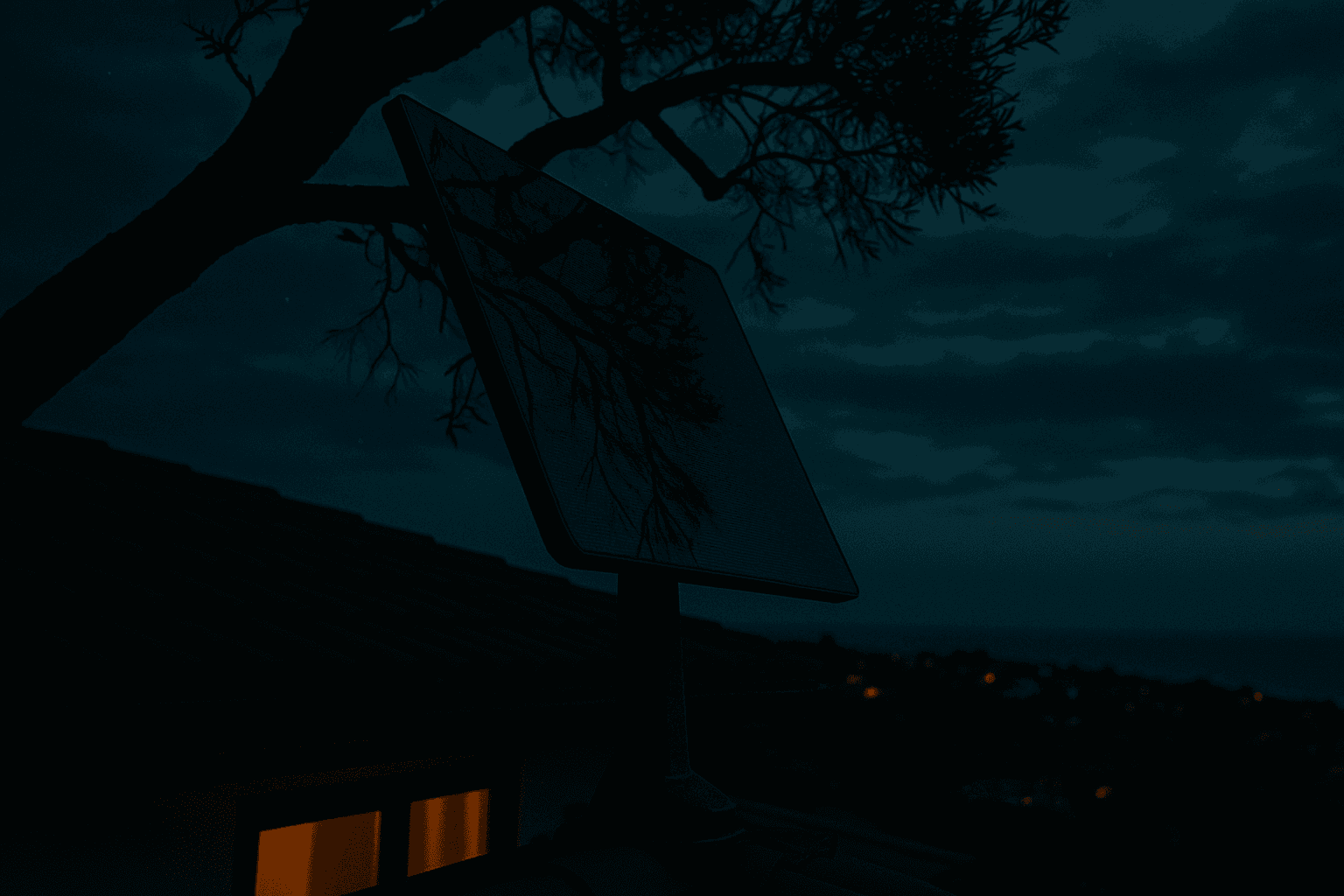
In Orange County, obstructions are the single most common long-term cause of Starlink issues. Here is the kicker: your obstruction picture can change over time. A tree grows. A neighbor builds a second story. Construction goes up in the next lot. Your install was clean on day one and ugly by month eighteen.
Run the obstruction scan:
- Open the Starlink app
- Tap Visibility (or Check for Obstructions on older app versions)
- Stand under your dish or hold your phone where the dish is
- Follow the on-screen instructions to rotate 360 degrees
- Review the hemisphere map
Anything in red is blocked sky. Under 2 percent total obstruction is fine. Over 2 percent and you will see dropouts during streaming and video calls.
Common OC obstruction patterns we see every week:
- Mature ficus and eucalyptus in Anaheim, Orange, Fullerton, and older Santa Ana
- Neighbor's new second story in Irvine, Tustin Ranch, Ladera Ranch
- Canyon ridge blocking on Laguna Beach and Newport Coast hillside homes
- Palm fronds growing into the sky cone in Huntington Beach and Newport Beach
If obstructions are the issue, the fix is relocating the dish — either to a different spot on the roof, up on a taller mast, or onto a set-back pole mount. See our obstruction check guide for more detail on how to read the scan.
Step 5 — Run Speed and Ping Tests
In the Starlink app, hit Statistics. You are looking for:
| Metric | Good | Needs Investigation |
|---|---|---|
| Download | 100 to 250 Mbps | Under 50 Mbps sustained |
| Upload | 15 to 40 Mbps | Under 5 Mbps sustained |
| Latency | 30 to 60 ms | Over 100 ms sustained |
| Obstructions | Under 2 percent | Over 2 percent |
| Stowed time | 0 percent | Anything above zero when dish should be live |
If speeds are slow but obstruction is clean and cables are good, the issue may be:
- Network congestion — rare in OC but possible in high-density zip codes
- Router placement — the Starlink radio is good, but walls and metal kill it. If you have great speeds at the router and bad speeds in a back bedroom, it is a Wi-Fi problem, not a Starlink problem.
- Mesh conflict — if you have an existing mesh system and the Starlink router is also broadcasting, the two networks can interfere. Put the Starlink router in bypass mode and let your mesh handle Wi-Fi.
Step 6 — Weather and Short-Term Issues
In Orange County, weather is rarely the cause of persistent issues. We have clear skies more than 275 days a year. If you are getting dropouts during:
- Morning marine layer (June gloom) — brief softening for an hour, self-clears
- A Santa Ana wind event — check if the dish physically moved; high winds can loosen a bad mount
- A Pineapple Express rainstorm — brief dropouts are normal, minutes not hours
- Wildfire smoke — generally does not affect Starlink signal
If the dropouts outlast the weather event, it is not the weather. It is an obstruction or a hardware issue.
Step 7 — When to Call a Pro
Call an installer when:
- You ran the checks above and still have persistent issues
- The dish physically moved, tilted, or is loose
- The cable has visible damage that needs replacement
- Water is leaking at the penetration
- You see obstructions that require a new mount location
- You need a mesh or bypass-mode Wi-Fi reconfiguration
A typical diagnostic service visit in Orange County takes about an hour and finds the issue in most cases. If a relocation or mount rework is needed, we quote that on site.
Preventing Future Issues
Five quick habits keep Starlink issues rare:
- Run the obstruction scan twice a year, especially before and after tree-growth seasons
- Walk your cable run once a year looking for damage
- Keep the dish firmware up to date — the app handles this automatically
- Clear palm fronds and branches when they start growing near the sky cone, not after
- After any major wind event, check that the dish is level and the mount is tight
Need a Diagnostic Visit
Most Starlink issues in Orange County are fixable in an hour once someone is on site. Request a service visit or call (714) 474-5075. Diagnostic visits start at our service rate, with any recommended rework or relocation quoted on site before we do it.